ElementsNavigation & windows
MakeWindow
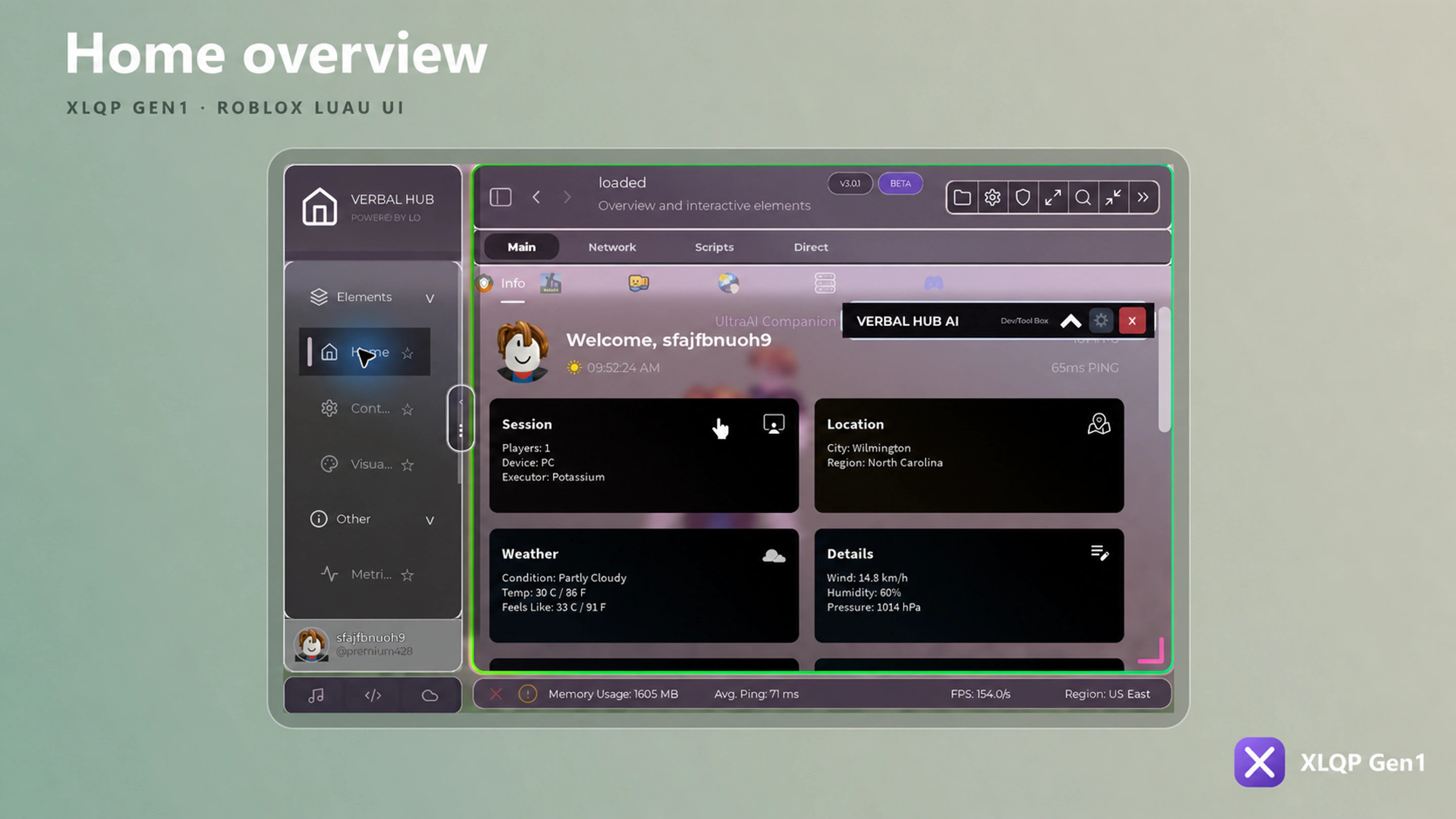
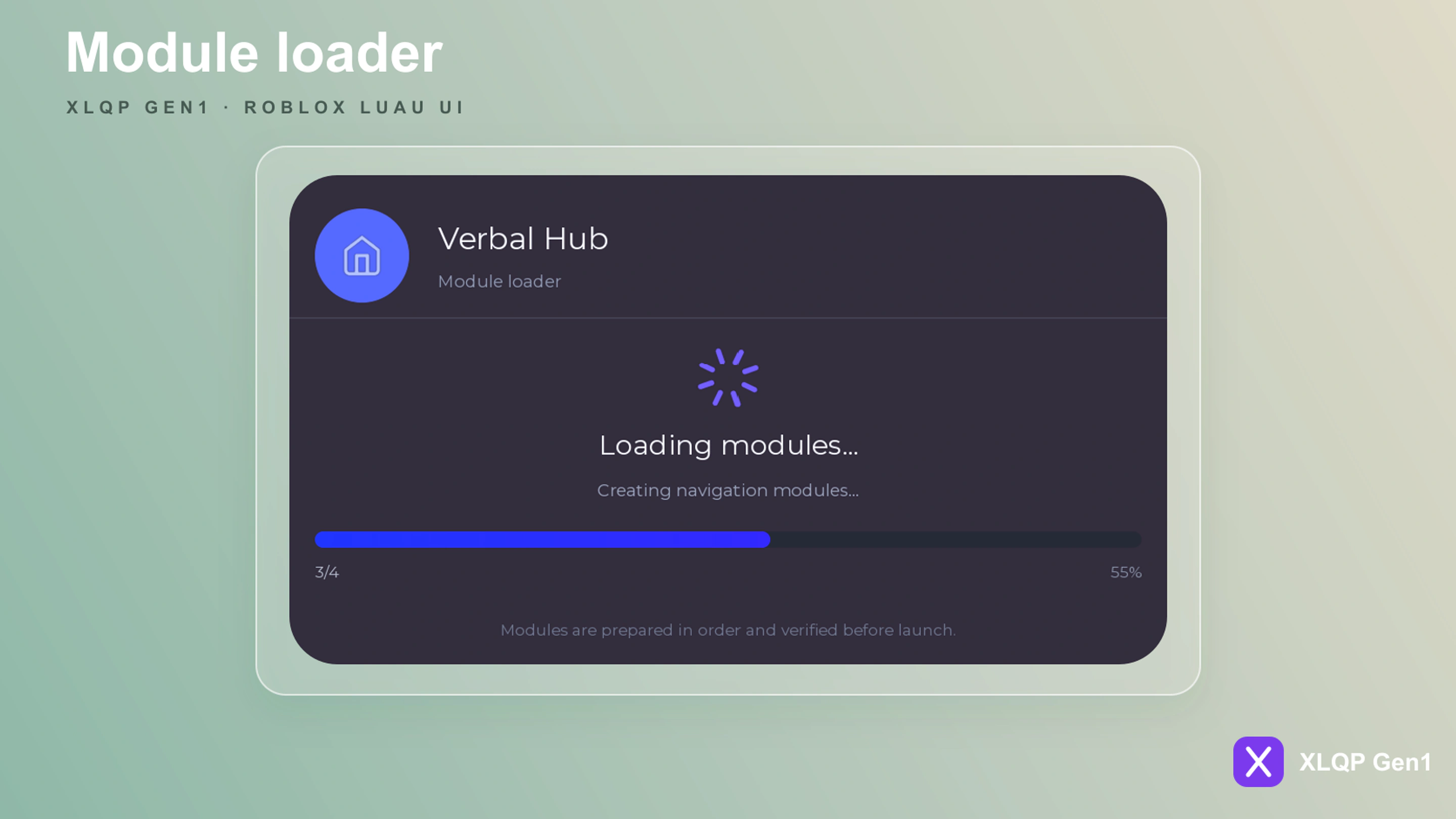
Creates the main XLQP window and initializes its configured appearance, navigation, loading, security, and persistence features.
MakeWindow
What it does
Creates the main XLQP window and initializes its configured appearance, navigation, loading, security, and persistence features.
When to use it
Use it once near the start of your script, then keep the returned window to build tabs and control window state.
XLQPGen1:MakeWindow(config)
local Window = Library:MakeWindow({
    Branding = {
        Name = "My Hub",
        Subtitle = "Powered by XLQP Gen1",
        Icon = "home",
    },
    Config = {
        Enabled = true,
        Folder = "MyHub",
    },
    Appearance = {
        LiquidGlass = true,
        CornerRadius = 18,
        GifBackgroundEnabled = false,
        GifBackgroundUrl = "",
        GifBackgroundTransparency = 0.2,
        Size = UDim2.new(0, 860, 0, 560),
    },
    Loading = {
        IntroEnabled = true,
        IntroText = "My Hub",
        IntroSubtitle = "Loading...",
        IntroDuration = 0.8,
        FastLoad = true,
    },
    Behavior = {
        ToggleKey = Enum.KeyCode.RightShift,
        UnlockMouse = true,
    },
    Navigation = {
        Enabled = true,
        SidebarTab = true,
    },
    Security = {
        AntiLogger = true,
        Mode = "Better",
    },
})
Behavior and return value
Store the returned controller or object when later code needs to update its state, call its methods, or close it.
Fields marked optional may be omitted. XLQP then uses the method’s built-in default or leaves that feature disabled.